
Claude Artifacts: 4 Live Use Cases That Replace Your Morning Stack (2026)
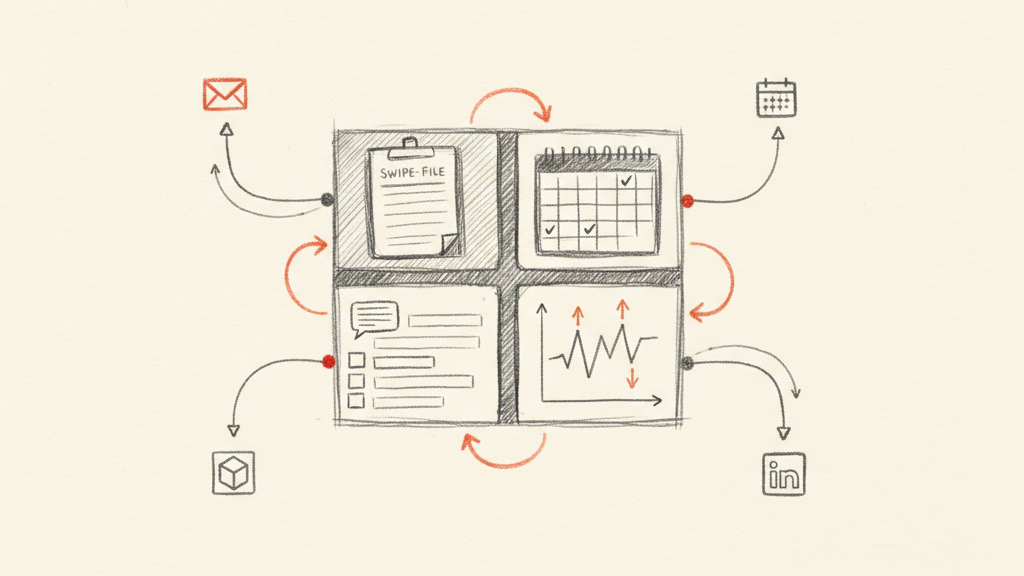
Anthropic shipped live artifacts in 2026, and it is the biggest Cowork upgrade since launch for any founder who runs operations inside Claude. A Claude live artifact replaces the pile of apps you check every morning. You build one dashboard, it pulls fresh data every time you open it, and there is no token cost on the refresh.
I am Joon Ahn, founder of AI Topia. I run an AI agency and a SaaS product as a solo founder. I have shipped work across 200+ B2B SaaS engagements over 10+ years. I use Claude to do what used to take a full team. This week I built 4 live artifacts that now run my whole morning. Here is what each one does and how you build your own.
Watch the full walkthrough on YouTube
What Are Claude Live Artifacts?
A Claude live artifact is a persistent, auto-refreshing dashboard that lives inside Claude Cowork. You build it one time. Every time you open it, it pulls fresh data from your connected apps on its own. There is no prompt to type and no token cost on the refresh.
Under the hood, a live artifact is a self-contained HTML page. Claude Cowork saves it and re-pulls fresh data from your connectors each time you open it. So you never see stale data. It connects to real apps like Gmail, Google Calendar, Stripe, and Shopify. It sits in your left sidebar and opens from any Claude session at any time.
The mechanic is simple. When you get a new email, your dashboard shows it. When your Stripe balance changes, your dashboard shows it. Version history is built in, so you can roll back while you iterate. Anthropic released this in 2026 as a core part of Cowork.
Why Live Artifacts Replace the Founder Morning Stack
Live artifacts replace your morning stack because one dashboard now does the job of five separate apps. Most founders start the day inside a calendar app, an email tab, a Notion board, a LinkedIn inbox, and a BI tool. A live artifact pulls all of that into one screen that refreshes itself.
Most SaaS tools force you to work their way. Their layout is fixed. Their filters are fixed. A live artifact flips that. You own one custom dashboard and you shape it to your taste. You say "show me only high-priority tasks" or "show me only business meetings," and Claude rebuilds the view in a few minutes. This is the same shift toward Claude as an action engine that does the work for you, not just a chat window you copy answers out of.
Here is the swap I made. The table below shows the morning stack tool and the Claude live artifact that replaced it.
| Morning stack tool | Claude live artifact replacement |
|---|---|
| Notion swipe board | Swipe File Review artifact (shows only un-claimed resources) |
| Calendar + email + task apps | Weekly Plan Command Center |
| LinkedIn inbox | LinkedIn Inbox Reader (sorts DM intents) |
| BI dashboard | Trend Signals Dashboard |
I run 4 dashboards now. They cover content inspiration, weekly planning, inbox triage, and trend research. Each one saves me real time before 9 a.m.
Use Case 1: Swipe File Review
The Swipe File Review artifact pulls live data from my Notion CRM and shows only the inspiration resources I have not claimed yet. I check it every morning to see what is still open.
Here is the problem it solves. To keep making better content, I collect inspiration from other creators every day. Many creators gate their resources. You have to comment a keyword on their post to get the resource sent to you. Tracking which ones replied and which ones did not was tiring.
So I built a flow. A skill takes the link of a post after I comment on it and saves it to my Notion swipe file with a "got it" or "didn't get it" flag. The live artifact connects to that Notion CRM and surfaces only the resources I never received. A lot of creators run automations that miss replies, so this catches the gaps.
From the dashboard I open the Notion page or jump to the original post. Then I send a short DM asking for the resource again. Once I have it, I drop it into Obsidian or NotebookLM and work out how to turn it into better content for my audience, in a voice that stays mine because the AI CMO learns your brand voice instead of flattening it.
Use Case 2: Weekly Plan Command Center
The Weekly Plan Command Center is one live artifact that connects Google Calendar, Gmail, Notion, and Obsidian into a single brief. Any founder with a packed week of meetings and tasks needs this command center.
I connect Google Calendar and Gmail for schedule and inbox, Notion and Obsidian for tasks and notes. The artifact shows one overview of my week. Setup took minutes and it was worth it.
The best part is the layout control. My first version had calendar on the left, tasks on the right, inbox below, and notes at the bottom. I did not like it. I typed "update the layout for simplicity," and in a few minutes Claude rebuilt it with tasks on top, calendar next, then inbox.
Because it reads live data from your connectors, you also filter it. You ask to see only your highest-priority tasks, or only meetings tied to business. The dashboard bends to you instead of the other way around.
Use Case 3: LinkedIn Inbox Reader
The LinkedIn Inbox Reader connects to my LinkedIn DMs, classifies the intent of each message, and surfaces the priority replies as tasks. LinkedIn is my number one source for B2B deals, the same way Reddit drives B2B SaaS pipeline when you read the room first, so my inbox matters.
I have many followers on LinkedIn, and I get a heavy flow of requests every day. On a busy day that is 100 DMs. Reading every one and sorting it in my head was a time sink. I needed the priorities pulled to the top.
So I told the dashboard to classify the intents from my DMs and hand me the important ones as tasks. It pulls in the latest chats and tells me which ones to answer first. Some are partnership talks. Some are people who want a lead magnet or a freebie. Some are simple idea swaps. When the artifact flags an urgent reply, I open it and answer right away.
Use Case 4: Trend Signals Dashboard
The Trend Signals Dashboard is the CMO lean dashboard I run for trend research. It connects to a data source of scraped signals and shows the viral posts, high-threat articles, and active competitors in my niche. This is the dashboard I built live in the video.
Here is the build path if you do not already have a signals database. You scrape your sources with Apify or Firecrawl. You save the results in SQLite, Notion, or any store you like. Then you connect that data source to Claude Cowork and ask it to generate the dashboard with a live artifact.
I built mine with one prompt. I said I scrape signals from many sources and asked it to show viral content, high-threat articles, and active competitors. In a few minutes the dashboard appeared on the right side of Cowork. I can filter it down to viral-only, Reddit-only, YouTube-only, or LinkedIn-only.
This is how you spot the best topics in your niche first. You see the trend, you write the SEO blog faster than anyone, and you set yourself up as the authority in your space. Pair this with self-evolving agents that run autonomous research and the dashboard keeps surfacing fresh signals without you babysitting it.
How to Build Your Own Live Artifact
You build a live artifact in three steps inside Claude Cowork. Open Cowork, create a new live artifact with Claude, and connect your apps. The whole thing takes a few minutes.
Step one is to open Claude Cowork and select live artifact. Step two is to create a new artifact and tell Claude what dashboard you want in plain English. Step three is to connect the apps and tools you need, like Gmail, Google Calendar, Notion, Stripe, or your own SQLite database. You can also connect Claude skills to extend what the artifact does.
Once it is built, the artifact saves to your left sidebar and refreshes on its own each time you open it. You change the layout by asking. You add filters by asking. You roll back with built-in version history while you iterate. Start with one dashboard from the four above, then keep adding as you find new uses.
I already run agents around the clock for content, SEO, video, and lead generation, wired together as a multi-agent marketing system. Live artifacts sit on top of that work. They give me one place to read the output instead of jumping between tools. My advice is to build the Weekly Plan Command Center first. It connects four apps you already use and pays back the setup time on day one. Then layer in the Swipe File Review, the LinkedIn Inbox Reader, and the Trend Signals Dashboard as you go. Within a week you will have a custom morning stack that no off-the-shelf SaaS can match, and you will own every part of it.
Frequently Asked Questions
What is a Claude live artifact?
A Claude live artifact is a persistent, auto-refreshing dashboard inside Claude Cowork. It is a self-contained HTML page that pulls fresh data from your connected apps every time you open it, with no prompt and no token cost on the refresh.
Live artifacts vs Cowork: what is the difference?
Cowork is the workspace inside Claude where you run agents, skills, and projects. A live artifact is one type of object you build inside Cowork. The artifact is the saved dashboard. Cowork is the home it lives in.
Can artifacts pull live data?
Yes. A live artifact re-pulls fresh data from your connectors every time you open it. Connect Gmail, Google Calendar, Stripe, Notion, LinkedIn, or a SQLite database, and the dashboard updates on its own. New email and balance changes show up without a prompt.
Are Claude artifacts free?
Claude artifacts are part of paid Claude plans that include Cowork. The refresh itself costs no extra tokens once the artifact is built. You build it one time and reopen it every day at no added cost.
Claude artifacts vs ChatGPT canvas: how do they compare?
ChatGPT canvas is a document and code editing surface inside a chat. A Claude live artifact is a standalone dashboard that connects to your real apps and refreshes its data on its own. The artifact is built for live operations, not for editing a single document.
How do you share a live artifact?
You share a live artifact from Claude Cowork. It saves to your sidebar and opens from any Claude session, so you reach it from anywhere you sign in. You shape the layout and filters to fit how you work.
Want Weekly Founder Video Without Filming Weekly?
We run the Video Engine for you, or install it in your team. AI avatar, real footage, or both.